
Users Acess and Escalation Contacts
During the initial account setup and onboarding, the user access rights and escalation contacts are defined based on your current team structure.
However, you can make subsequent changes and adjustments yourself.
It can be done via the "My Company" page > "Team" tab and by clicking on individual team member names.
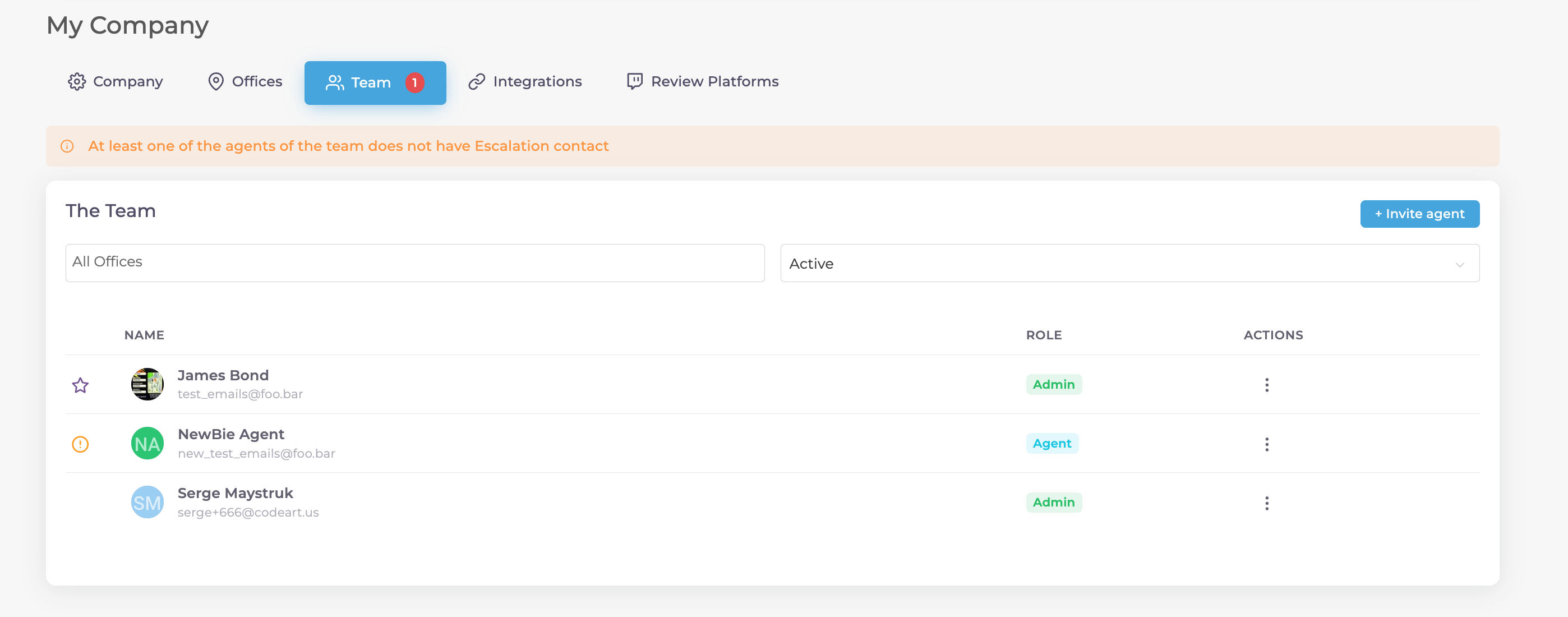
If you make any changes to the settings, make sure you press "Update Agent" button at the bottom of the page to apply them.
User's access and limitations
Users with Admin access can navigate all Portfolios that are selected under the User Access section.
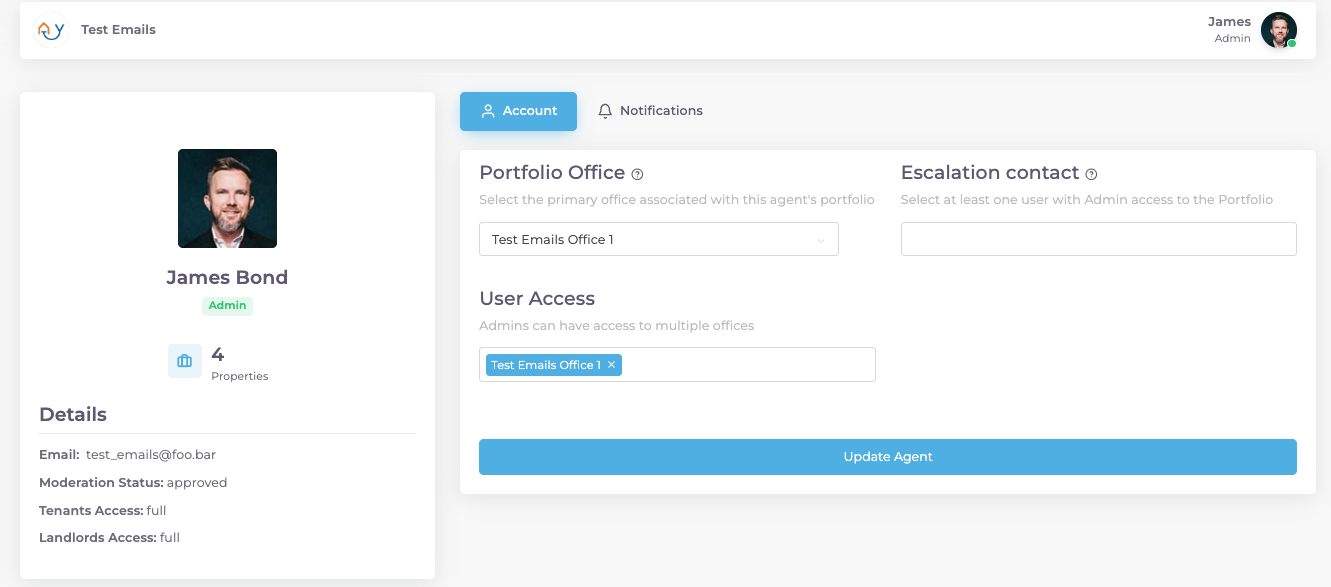
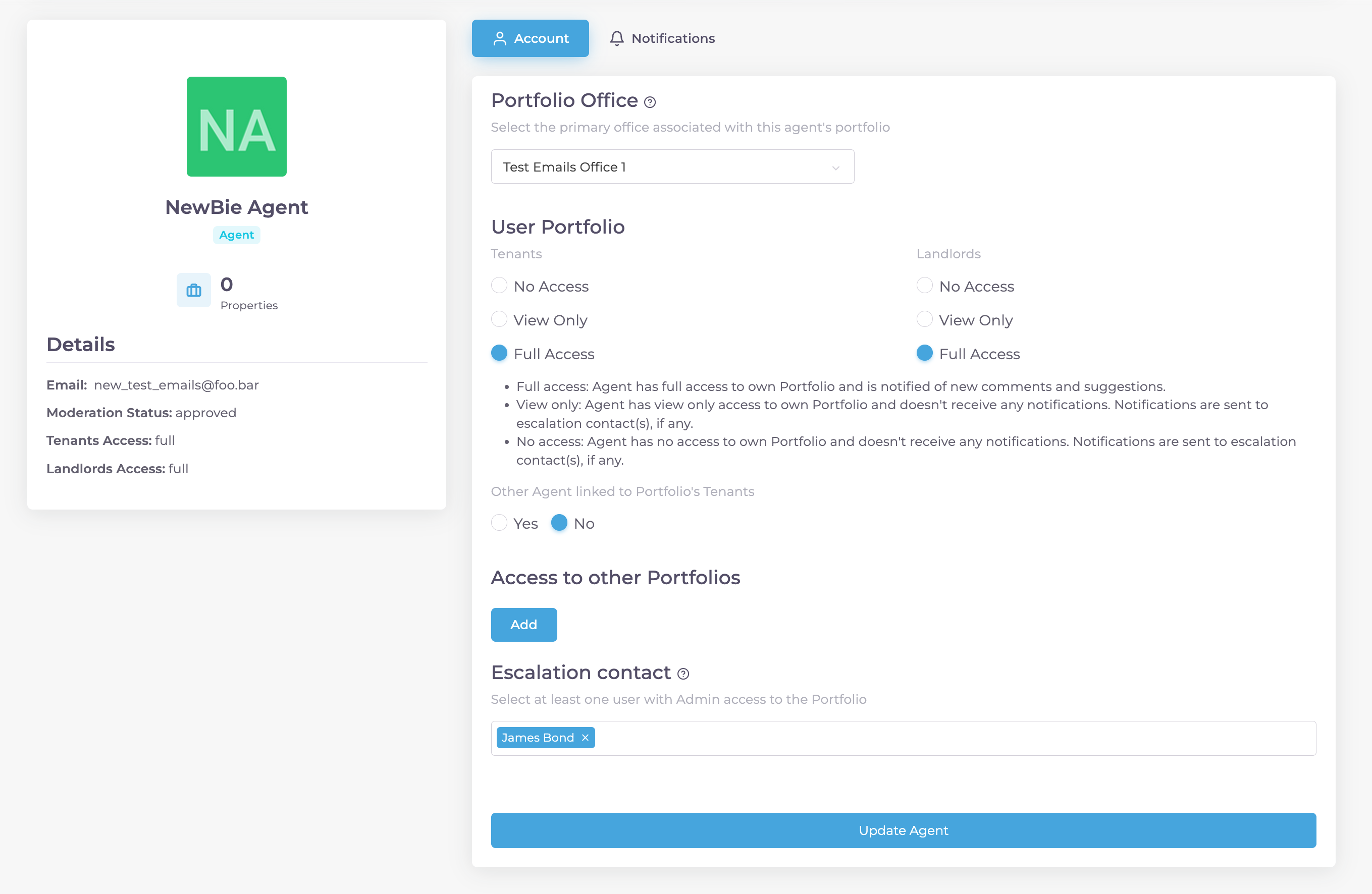
Access rights for Agents can be tailored based on team roles and preferences:
Access to Office Portfolio
- Full access: The agent has full access to their own Portfolio and is notified of new comments and suggestions.
- View only: The Agent has view-only access to their own Portfolio and doesn't receive any notifications. Notifications are sent to elevation contact(s), if any.
- No access: The agent has no access to their own Portfolio and doesn't receive any notifications. Notifications are sent to elevation contact(s), if any.
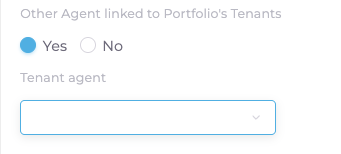
Other Agent Linked to Portfolio's Tenants
By default the property manager will be set as both the Landlord and Tenant agent of a rental. If you wish to have a distinction between the property manager handling the tenants and property manager handling the landlords, you may use this feature by selecting Yes.
This allows tenant surveys to be matched with a specific property manager and landlord surveys to be matched a different property manager.
Access to other Portfolios
This can be used for Agents without Admin access, but needing access to one or more other Portfolios within their office.
You will be able to add other Portfolio(s) and select the access rights for each customer type: Tenants / Landlords. The same access options are available: No access, View only, Full access.

Escalation contact(s)
To be an available escalation contact, a user must have Admin access to the concerned Portfolio
- Escalation contact(s) will get notified about negative feedback in real-time.
- For each Agent (/ Portfolio), we recommend at least one escalation contact to be selected.

Notifications
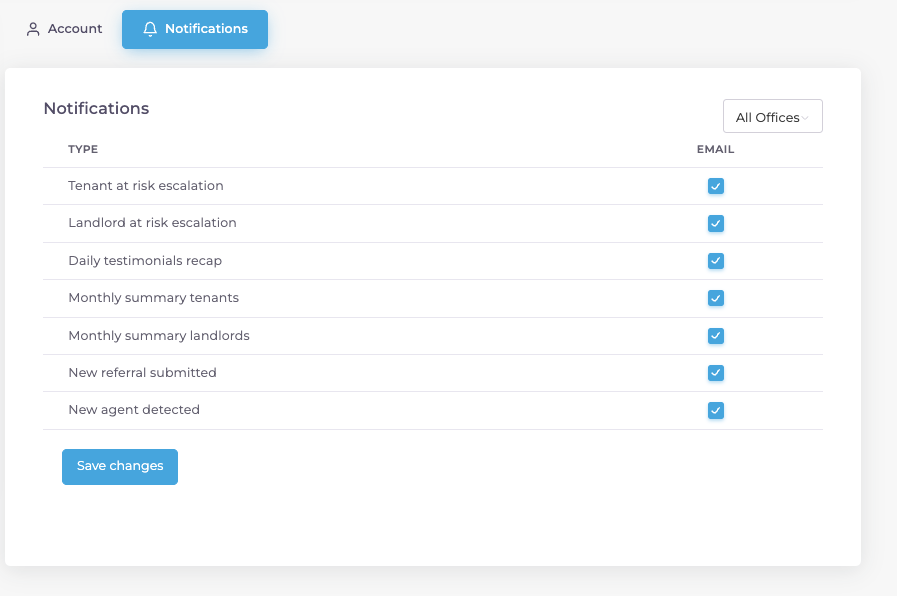
You can also select which notification emails you will receive based on the type of event that is described on the notifications tab. You may also customise it if you wish to only receive emails from certain offices as well.
An admin account will also be able to customise these settings for other agents.